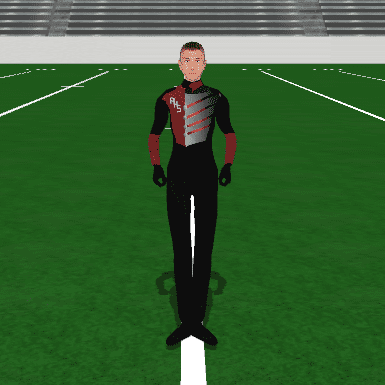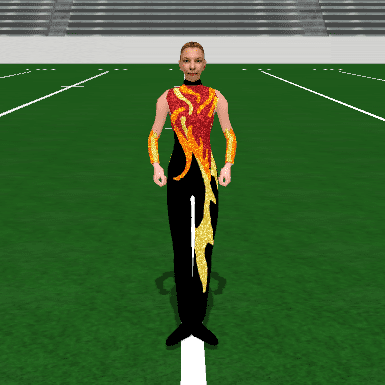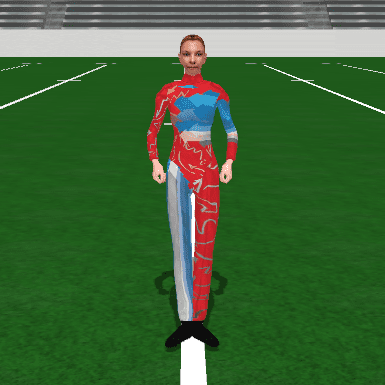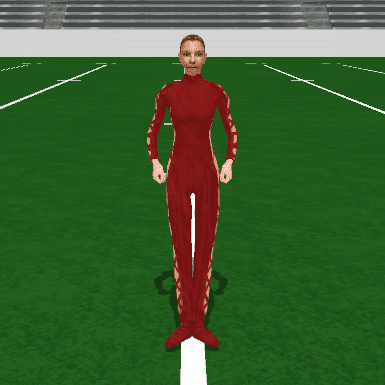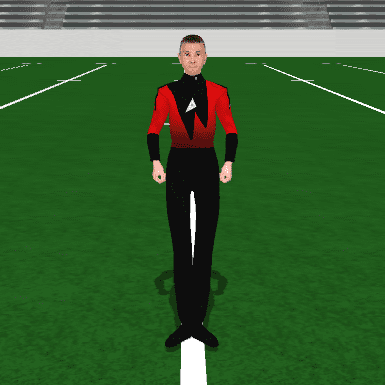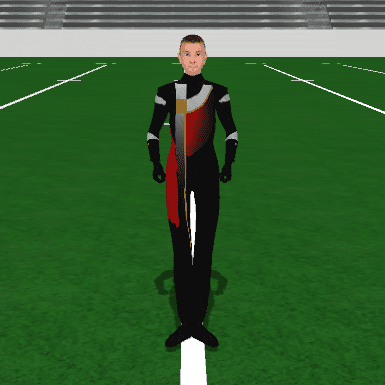
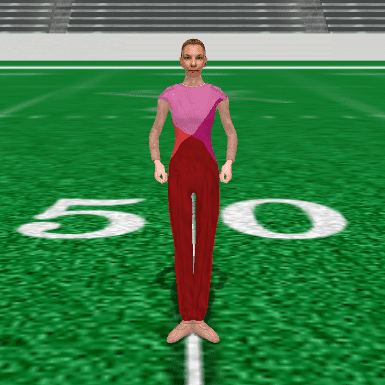
Red

DG1

DG1

Instructions Fabric files, such as uniforms and flag silks, are applied in the drill file’s Document Options. To load a fabric file: Click the image to download the fabric file. Save the fabric file to your computer. In Pyware 3D, go to File > Document Options > Real View Perspective (tab). Click the edit button […]
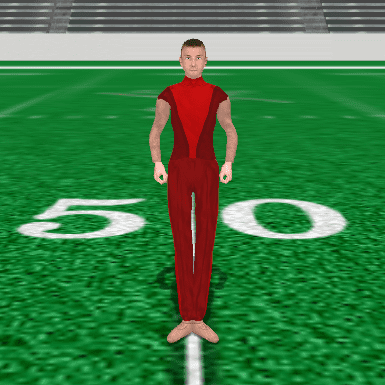
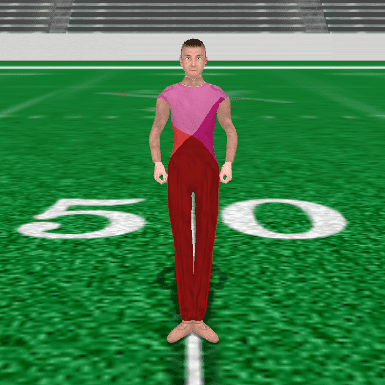
DG1 Read More »

DG4

DG4

Instructions Fabric files, such as uniforms and flag silks, are applied in the drill file’s Document Options. To load a fabric file: Click the image to download the fabric file. Save the fabric file to your computer. In Pyware 3D, go to File > Document Options > Real View Perspective (tab). Click the edit button

DG4 Read More »

DG2

DG2

Instructions Fabric files, such as uniforms and flag silks, are applied in the drill file’s Document Options. To load a fabric file: Click the image to download the fabric file. Save the fabric file to your computer. In Pyware 3D, go to File > Document Options > Real View Perspective (tab). Click the edit button

DG2 Read More »

DG

DG

Instructions Fabric files, such as uniforms and flag silks, are applied in the drill file’s Document Options. To load a fabric file: Click the image to download the fabric file. Save the fabric file to your computer. In Pyware 3D, go to File > Document Options > Real View Perspective (tab). Click the edit button

DG Read More »

CM6

CM6

Instructions Fabric files, such as uniforms and flag silks, are applied in the drill file’s Document Options. To load a fabric file: Click the image to download the fabric file. Save the fabric file to your computer. In Pyware 3D, go to File > Document Options > Real View Perspective (tab). Click the edit button

CM6 Read More »

CM1

CM1

Instructions Fabric files, such as uniforms and flag silks, are applied in the drill file’s Document Options. To load a fabric file: Click the image to download the fabric file. Save the fabric file to your computer. In Pyware 3D, go to File > Document Options > Real View Perspective (tab). Click the edit button

CM1 Read More »

CC

CC

Instructions Fabric files, such as uniforms and flag silks, are applied in the drill file’s Document Options. To load a fabric file: Click the image to download the fabric file. Save the fabric file to your computer. In Pyware 3D, go to File > Document Options > Real View Perspective (tab). Click the edit button

CC Read More »

BZ2

BZ2

Instructions Fabric files, such as uniforms and flag silks, are applied in the drill file’s Document Options. To load a fabric file: Click the image to download the fabric file. Save the fabric file to your computer. In Pyware 3D, go to File > Document Options > Real View Perspective (tab). Click the edit button

BZ2 Read More »

BM

BM

Instructions Fabric files, such as uniforms and flag silks, are applied in the drill file’s Document Options. To load a fabric file: Click the image to download the fabric file. Save the fabric file to your computer. In Pyware 3D, go to File > Document Options > Real View Perspective (tab). Click the edit button

BM Read More »

AR

AR

Instructions Fabric files, such as uniforms and flag silks, are applied in the drill file’s Document Options. To load a fabric file: Click the image to download the fabric file. Save the fabric file to your computer. In Pyware 3D, go to File > Document Options > Real View Perspective (tab). Click the edit button

AR Read More »