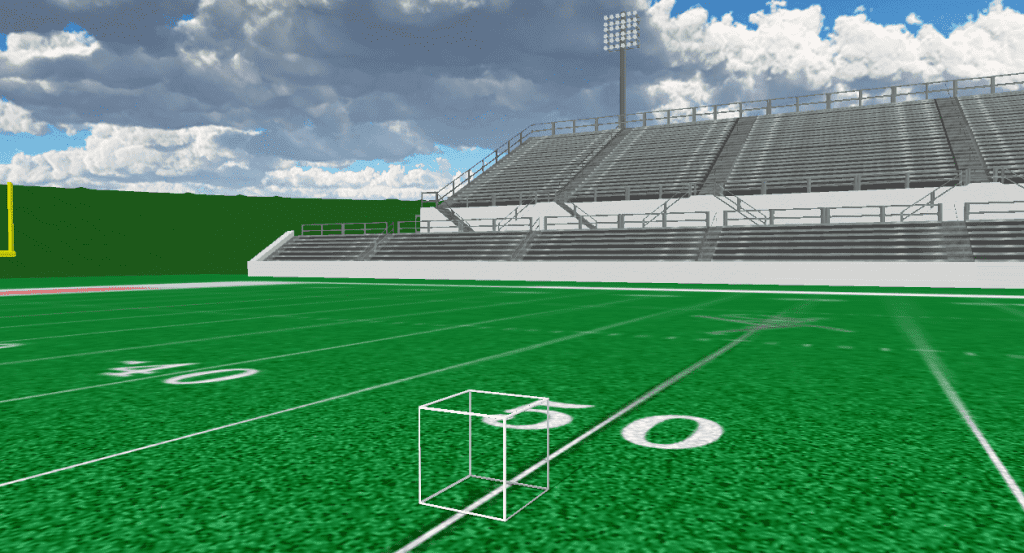
Prop

white pvc frame

White PVC Frame

Instructions Prop files are applied through the Visuals Editor in the Pyware 3D Tool Palette. To load a prop file: Click the image to download the prop zip file. Save the prop zip file to your computer. Extract all files from the prop zip file. In Pyware 3D, select the performer(s) you wish to assign […]
White PVC Frame Read More »

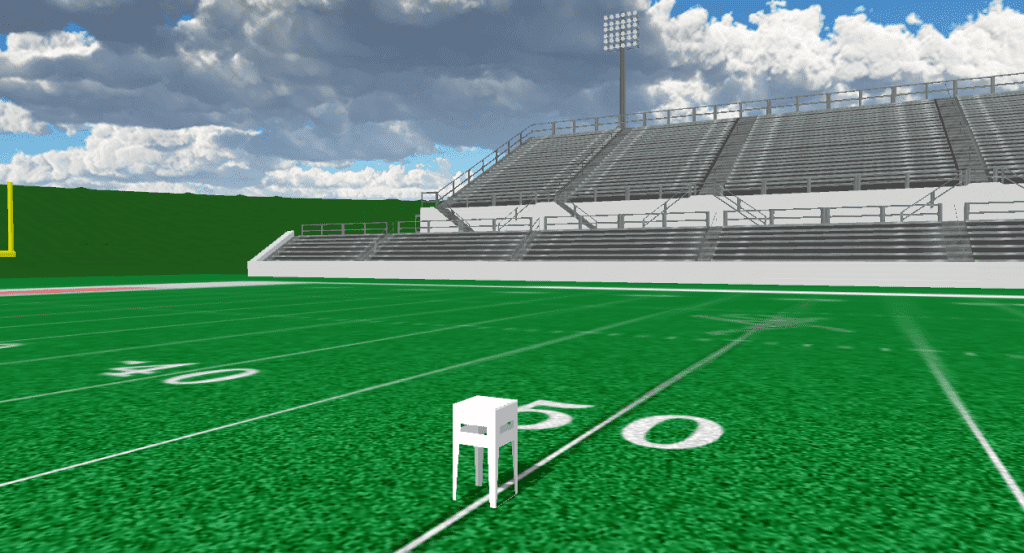
white barstool

White Barstool

Instructions Prop files are applied through the Visuals Editor in the Pyware 3D Tool Palette. To load a prop file: Click the image to download the prop zip file. Save the prop zip file to your computer. Extract all files from the prop zip file. In Pyware 3D, select the performer(s) you wish to assign

White Barstool Read More »

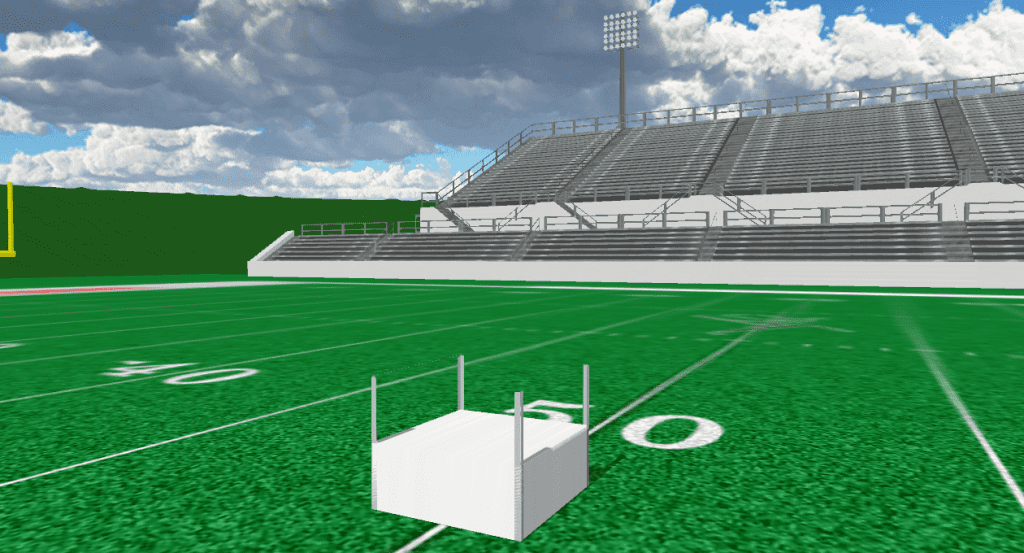
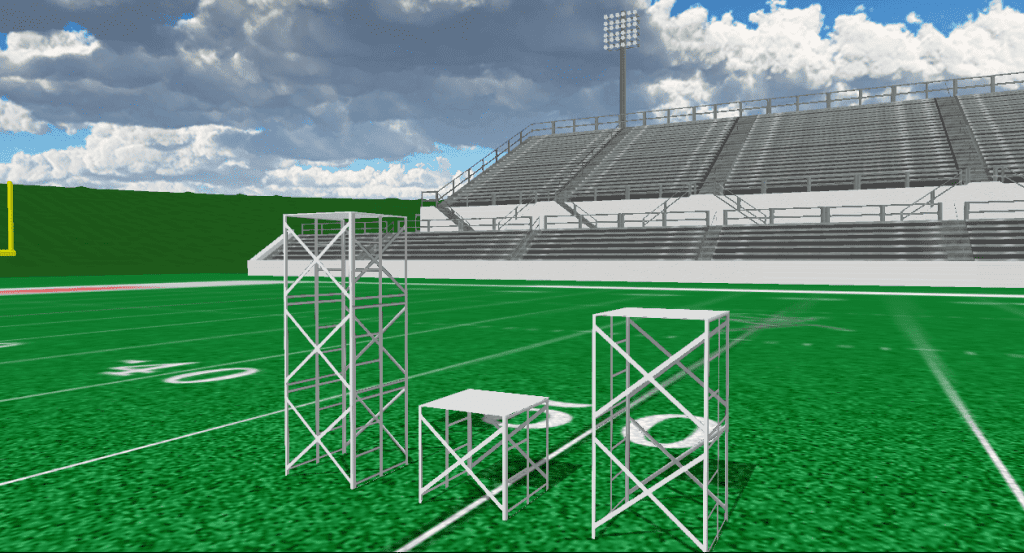
scaffolding

Scaffolding

Instructions Prop files are applied through the Visuals Editor in the Pyware 3D Tool Palette. To load a prop file: Click the image to download the prop zip file. Save the prop zip file to your computer. Extract all files from the prop zip file. In Pyware 3D, select the performer(s) you wish to assign

Scaffolding Read More »

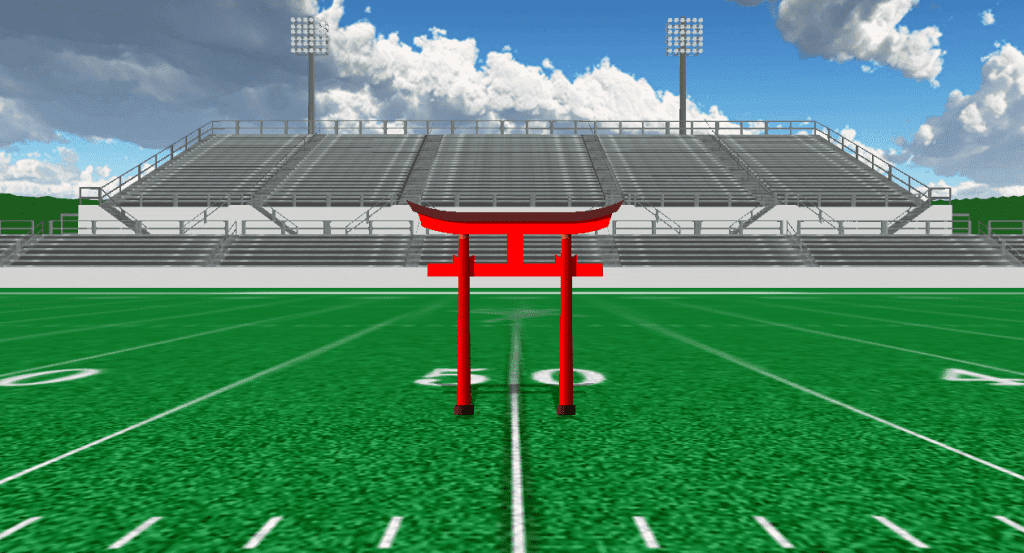
japanese torii

Japanese Torii

Instructions Prop files are applied through the Visuals Editor in the Pyware 3D Tool Palette. To load a prop file: Click the image to download the prop zip file. Save the prop zip file to your computer. Extract all files from the prop zip file. In Pyware 3D, select the performer(s) you wish to assign

Japanese Torii Read More »

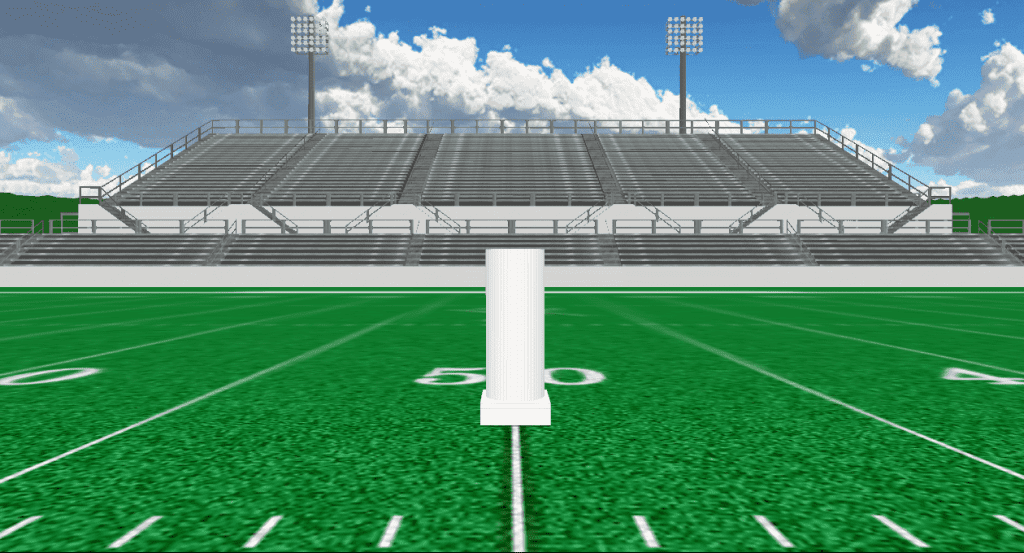
greek column

Greek Column

Instructions Prop files are applied through the Visuals Editor in the Pyware 3D Tool Palette. To load a prop file: Click the image to download the prop zip file. Save the prop zip file to your computer. Extract all files from the prop zip file. In Pyware 3D, select the performer(s) you wish to assign

Greek Column Read More »

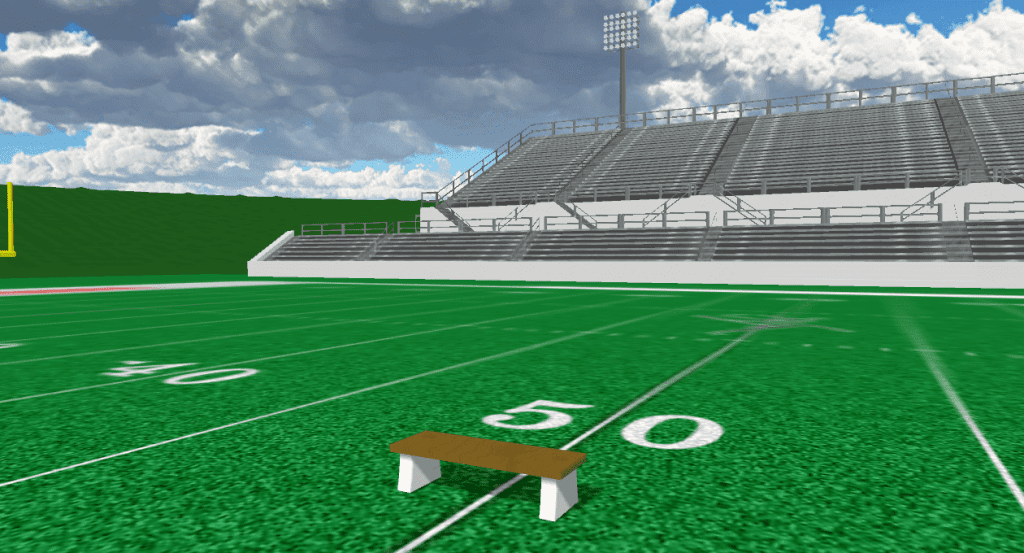
bench

Bench – No Back

Instructions Prop files are applied through the Visuals Editor in the Pyware 3D Tool Palette. To load a prop file: Click the image to download the prop zip file. Save the prop zip file to your computer. Extract all files from the prop zip file. In Pyware 3D, select the performer(s) you wish to assign

Bench – No Back Read More »

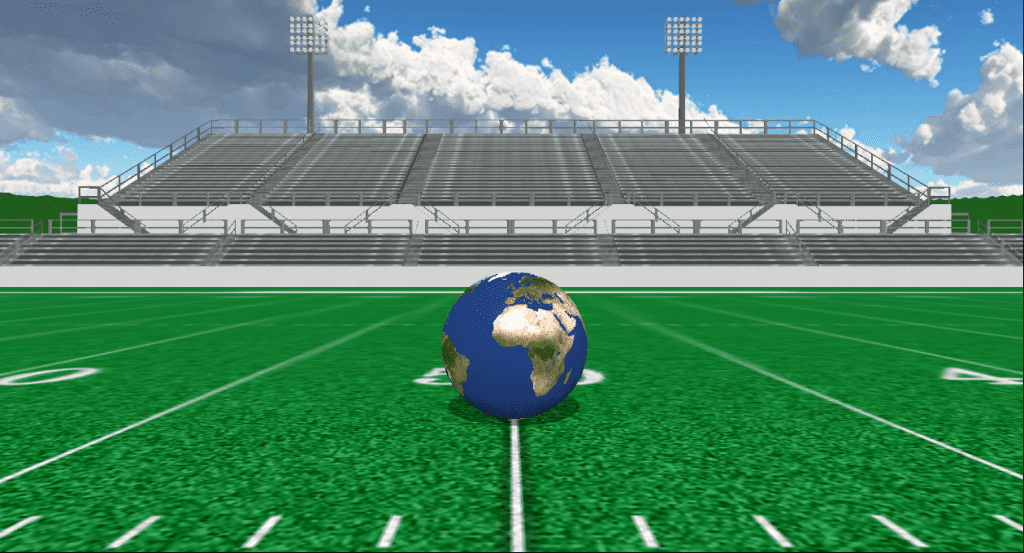
earth

Earth

Instructions Prop files are applied through the Visuals Editor in the Pyware 3D Tool Palette. To load a prop file: Click the image to download the prop zip file. Save the prop zip file to your computer. Extract all files from the prop zip file. In Pyware 3D, select the performer(s) you wish to assign

Earth Read More »

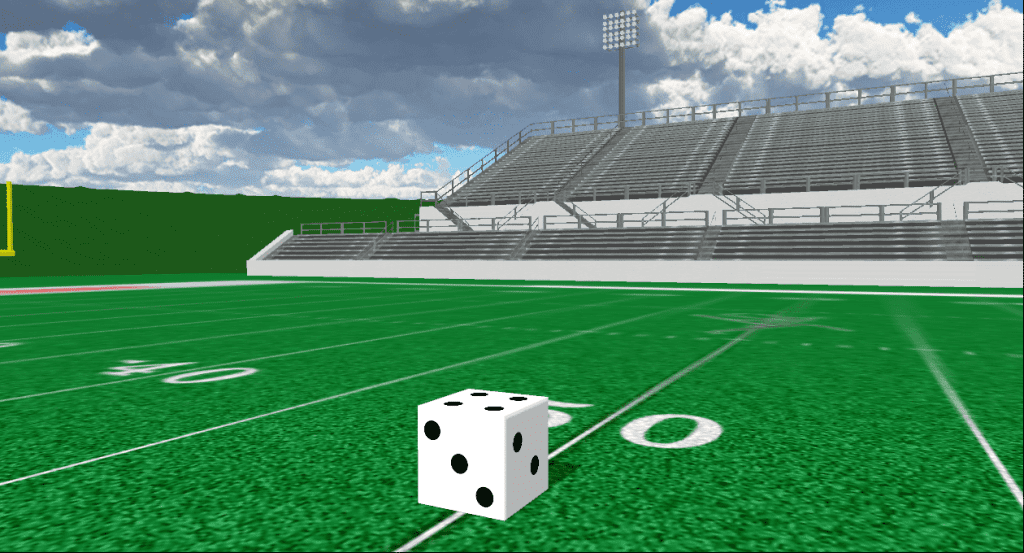
dice

Dice

Instructions Prop files are applied through the Visuals Editor in the Pyware 3D Tool Palette. To load a prop file: Click the image to download the prop zip file. Save the prop zip file to your computer. Extract all files from the prop zip file. In Pyware 3D, select the performer(s) you wish to assign

Dice Read More »

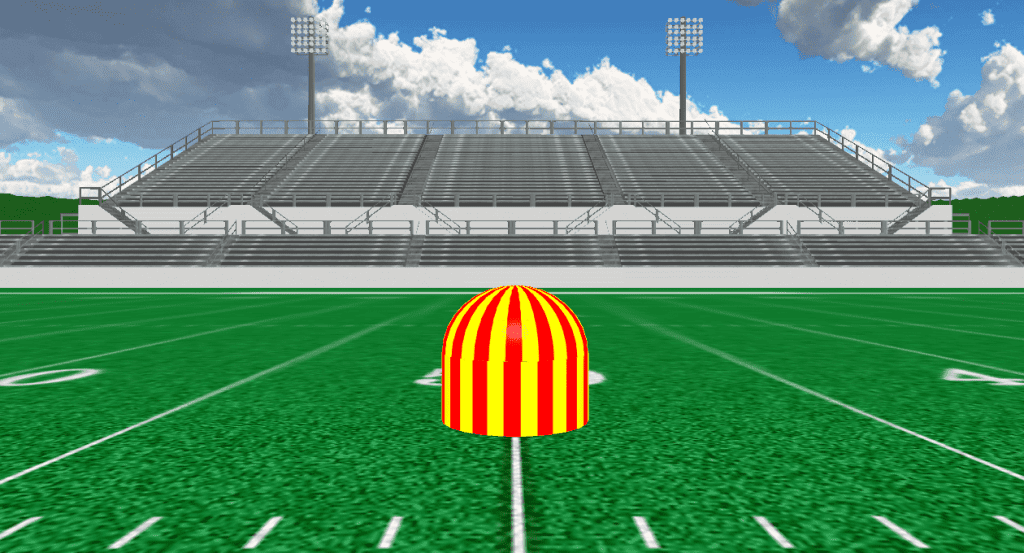
circus tent

Circus Tent

Instructions Prop files are applied through the Visuals Editor in the Pyware 3D Tool Palette. To load a prop file: Click the image to download the prop zip file. Save the prop zip file to your computer. Extract all files from the prop zip file. In Pyware 3D, select the performer(s) you wish to assign

Circus Tent Read More »

bed

Bed

Instructions Prop files are applied through the Visuals Editor in the Pyware 3D Tool Palette. To load a prop file: Click the image to download the prop zip file. Save the prop zip file to your computer. Extract all files from the prop zip file. In Pyware 3D, select the performer(s) you wish to assign

Bed Read More »